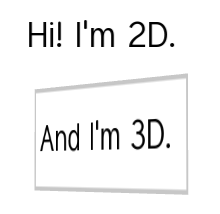
Use the Text Block nodes to show a small amount of text in your application. Text block node uses the font you select to render the text. Use Text Block 3D to show text in 3D space and Text Block 2D to show text in 2D space.
Font type
The default font in Kanzi is Fira Sans Regular. It is stored in <KanziInstallation>/Studio/Asset Library/Fonts. When you want to use your own font, import it to your Kanzi Studio project. See Importing fonts.
You can use these font types in your Kanzi applications:
- TrueType fonts (ttf and otf files)
- Bitmap fonts (fnt files)
- iType linked fonts (ltt files). See Using the iType linked fonts.
Make sure that the font you use includes all the glyphs for the text that you want to include in your Kanzi application.
Font size
Kanzi sets the size of fonts in pixels. When you set the Font Size property, Kanzi passes that value to the Freetype library, which Kanzi uses to render fonts, using the FT_Set_Char_Size function with the default dpi value of 72.
For example, both of these display the letter H of the same size:
- Kanzi Text Block 2D node with these properties set:
- Text to H
- Font to arial.ttf
- Font Size to 36
- HTML markup
<p style="font-family:arial; font-size:36px;">H</p>
If you want to control the dpi scaling or set the font size in units other than pixels, you must implement that functionality in your Kanzi application. For example, if you want to automatically select the content that the images and layouts in your project use based on the dpi setting, implement that functionality in your Kanzi application.
Adding text to your application
To add text to your application:
- In the Project press Alt and right-click the node where you want to show text and select either Text Block 3D, or Text Block 2D.
Note that you can create a 3D node only inside 3D nodes, and 2D node only inside 2D nodes.TIPIn the Preview use the Text Block 2D tool
 to click and drag to create a Text Block 2D node. To position the Text Block 2D node in a layout, click and drag that Text Block 2D node, press and hold Ctrl, and drop the node on top of the cell where you want to place it.
 - In the Properties in the Text property enter the text you want to show. To add a new line press Shift+Enter.
Use the Text Block nodes to show a small amount of text in your application. When the text is longer than a text block can show, by default Kanzi shows ellipsis. Add and set the Overflow property to show custom text.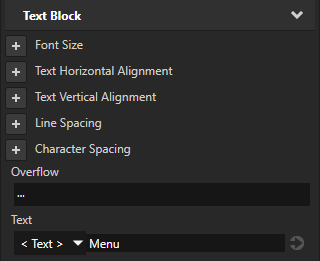
- In the Properties set the text block properties to make the text look the way you want it to look. Kanzi applies all the settings you set in a Text Block node to the entire node.
For example, set the Font Size property to define the size of the text. - (Optional) In the Font property select the font that you want to use.
The default font in Kanzi is Fira Sans Regular. It is stored in <KanziInstallation>/Studio/Asset Library/Fonts. When you want to use your own font, import it to your Kanzi Studio project. See Importing fonts. - (Optional) In the Properties add and set the Fixed Character Width property.
Use the Fixed Character Width property to turn any font into a monospaced font.
Setting the size and layout of a Text Block 3D node
To render a Text Block 3D node, Kanzi first prepares the text as 2D text using device-independent pixels and then projects the prepared text to the 3D space.
To set the size and layout of a Text Block 3D node:
- Use device-independent pixels to set the size and layout of the text in the Text Block 3D node.
For example, set the values of the Font Size, Character Spacing, and Fixed Character Width properties in device-independent pixels.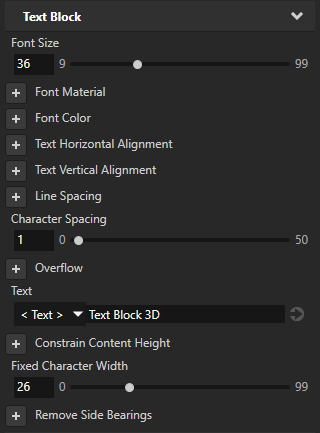
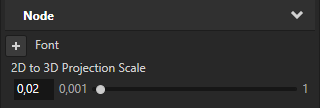
- Use the 2D to 3D Projection Scale property to set the factor that Kanzi uses to scale the text from device-independent pixels to 3D units. The default value of the 2D to 3D Projection Scale property is 0.02.
- Use 3D units to set the size of the Text Block 3D node in the 3D space.
For example, set the values of the Layout Width and Layout Height properties in 3D units.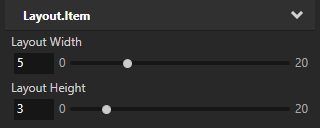
Setting the color of text in a Text Block 2D node
To set the color of text in a Text Block 2D node:
- In the Project create or select a Text Block 2D node.
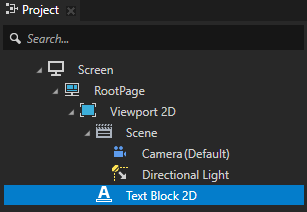
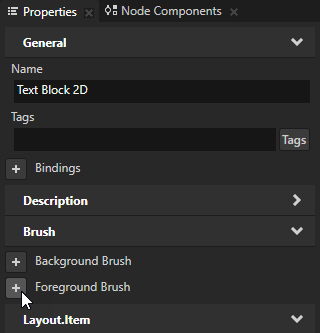
- In the Properties add the Foreground Brush property.
- Set the Foreground Brush property to an existing Color Brush or select + Color Brush, name the brush, click
 next to the property, and set the color of the Color Brush you created.
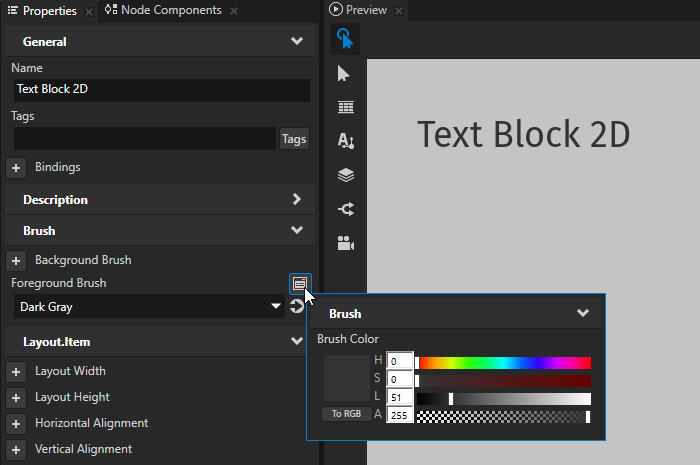 TIP
TIPTo quickly edit a brush, in the Properties next to the Background Brush or Foreground Brush property click
and edit the brush.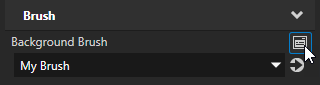
Setting the color of text in a Text Block 3D node
To set the color of text in a Text Block 3D node:
- In the Project create or select a Text Block 3D node.
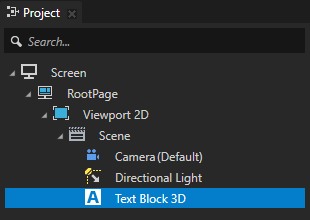
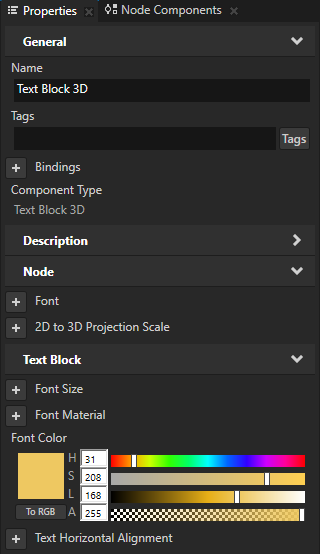
- In the Properties add and set the Font Color property.
Changing the size of text dynamically
To dynamically change the size of text in a Text Block node, use the Scale property field of either Render Transformation or Layout Transformation properties, instead of the Font Size property. For example, use this approach when you want to animate the size of text in a Text Block node.
When you use the Font Size property to dynamically scale the text, Kanzi creates multiple textures for different font sizes and does not release them from the memory.
Rendering pixel perfect text
When you create a project in Kanzi Studio, the Screen node has in its resource dictionary the Text Block 2D Style which enables the Snap to Pixel property for all Text Block 2D nodes in a Kanzi application. The Snap to Pixel property rounds the translation and scale of the Text Block 2D node to a full pixel, which enables Kanzi to render text pixel perfectly.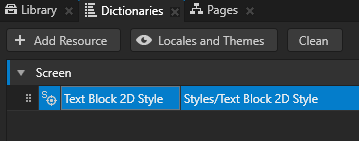
To disable the Snap to Pixel property, select the Text Block 2D node for which you want to disable that property and in the Properties add and disable the Snap to Pixel property.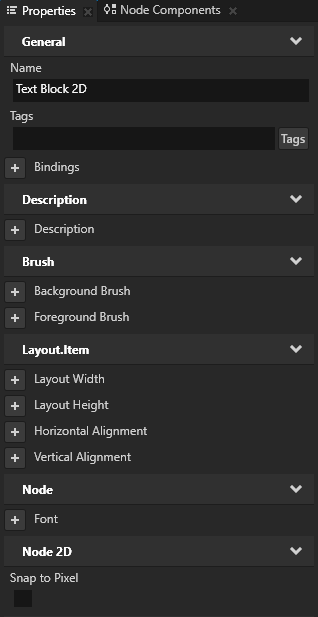
Rendering text with transparent background
When you want the background of the text block nodes to be transparent, you must render the nodes in the scene graph of your Kanzi application in the correct order. See Rendering partially transparent nodes.
Setting the appearance of a Text Block 2D node
To set the appearance of 2D nodes:
- You can fill 2D nodes with a solid color, a texture, or a material. See Adjusting the appearance of 2D nodes.



- You can rotate a 2D node around all three axes to create a 3D perspective effect. See Creating a 3D perspective effect for 2D nodes.

- You can apply custom rendering to 2D nodes to create post-processing effects. See Applying custom rendering to 2D nodes.
Using the Text Block 3D node in the API
To create a Text Block 3D node:
// Create a Text Block 3D node named Text Block.
TextBlock3DSharedPtr textBlock = TextBlock3D::create(domain, "Text Block");
To set the font of a text block:
// Set the font used by the Text Block node using the resource ID.
textBlock->setFont(font);
To add the text shown by a text block:
// Set the text in the Text Block node to Hello world!.
textBlock->setText("Hello\nworld!");
To adjust the appearance of the text:
// Set the style of the text in a Text Block 3D node:
// Set the size of the font to 90 device-independent pixels.
textBlock->setFontSize(90.0f);
// Set the color of the font to blue.
textBlock->setFontColor(ThemeBlue);
// Set the width of the text block in 3D space to 4 3D units.
textBlock->setWidth(4.0f);
// Set the height of the text block in 3D space to 5 3D units.
textBlock->setHeight(5.0f);
// To break long text lines to multiple lines to make the text fit within
// the boundaries of the text block, set the Word Wrap property to true.
textBlock->setWordWrap(true);
// To cut out the last lines that do not fit within the boundaries of the text block,
// set the Constrain Content Height property to true.
textBlock->setConstrainContentHeight(true);
// Align the text in the text block to the right.
textBlock->setTextHorizontalAlignment(TextBlockConcept::TextHorizontalAlignmentRight);
To adjust the scaling factor of the 2D to 3D projection:
// To scale the final text in 3D space, set the 2D to 3D projection scaling factor to 0.04.
// The default value of the Node::Projection2DTo3DScaleProperty property is 0.02f.
textBlock->setProjection2DTo3DScale(0.04f);
For details, see the TextBlock3D class in the API reference.
Using the Text Block 2D node in the API
To create a Text Block 2D node:
// Create a Text Block 2D node named Text node.
TextBlock2DSharedPtr textNode = TextBlock2D::create(domain, "Text node");
To set the font of a text block:
textNode->setFont(font);
To add the text shown by a text block:
// Set the text in the Text Block node to Hello world!.
textNode->setText("Hello\nworld!");
To adjust the appearance of the text:
// Set the style of the text in a Text Block 2D node:
// Set the line spacing to 1.5f.
textNode->setLineSpacing(1.5f);
// Set the size of the font to 36.0f.
textNode->setFontSize(36.0f);
// Set the color of the font to blue.
textNode->setFontColor(ThemeBlue);
// Align the text in the text block to the right.
textNode->setTextHorizontalAlignment(TextBlockConcept::TextHorizontalAlignmentRight);
For details, see the TextBlock2D class in the API reference.
Text Block property types and messages
For lists of the available property types and messages for the Text Block nodes, see Text block 2D and Text block 3D.
